
Salesforce Debug Logs: understanding Category, Level, and Events
Hey, dev! Welcome.
If you ever opened a Debug Log and thought "what is all this text?", don't worry. We all felt that way at some point. This guide is that conversation you wanted to have with a more experienced dev in your first month on Salesforce, but nobody took the time to explain. The idea is simple: we will go through the three things that control a Debug Log (Category, Level, and Events), with real screenshots, no guessing, and no unnecessary stuff.
If you already know about Debug Logs, stay here too. There is always that one detail that you missed before.
Quick tip before we start: if your org is not in English, change it.
I have seen many beginners looking for an option they cannot find
because the label on the screen is translated, and the tutorial they are
following is in English. Go to
Setup > Language & Time Zone > Language, change
it, and you can change it back later.
Ready? Let's go.
Glossary: read this before you continue
Don't skip this part. Every term below appears in the article, and if you don't understand one, the rest will not make sense. Even if you already know what SOQL is or what a trigger does, read it again. Sometimes you need to hear something explained in a different way.
Org - your company's Salesforce environment. Think of it like an apartment: your furniture (data), your roommates (users), your wiring (code). When someone says "in my org", they mean "in my company's Salesforce". You can have many: production (where the real business runs), sandbox (where you can break things without problems), scratch org (a temporary one that disappears after a few days), dev org (a free one that Salesforce gives you to study).
Transaction - everything that happens between the user's click and Salesforce's response. The user clicks "Save" and in that moment Salesforce can run a trigger, start two flows, check three validation rules, execute five queries, and call an external API. All of that together is one transaction. Think of a line of dominoes: the click pushes the first one, and Salesforce only responds when the last one falls (or when one falls the wrong way and everything stops). The Debug Log records the entire line, domino by domino.
Apex - the programming language of Salesforce. The syntax looks like Java. You use it to write classes, triggers, tests, and business logic that declarative tools cannot handle alone.
Trigger - Apex code that runs automatically when something happens to a record: created, updated, deleted, restored from the recycle bin. You do not call a trigger manually. It is like a motion sensor in a hallway: you walk by, the light turns on. You did not ask for it. You did not press anything. But the sensor was there, waiting.
SOQL (Salesforce Object Query Language) - the
language you use to search for records in the Salesforce database. If
you have used SQL before, you will recognize most of it. The difference
is that SOQL has extra rules (like you cannot do SELECT *)
that can be annoying at first, but they exist because of governor
limits. Example:
SELECT Name FROM Account WHERE Industry = 'Energy'.
SOSL (Salesforce Object Search Language) - the less famous cousin of SOQL. While SOQL searches records from one object with specific conditions, SOSL does a text search across many objects at the same time. Like a Ctrl+F for the entire database. Less common in daily work, but it appears in the logs.
DML (Data Manipulation Language) - operations that
write to the database. SOQL asks, DML acts:
insert (create), update (change),
delete (remove), upsert (create or update,
Salesforce decides), undelete (restore from recycle bin).
Each DML uses part of your transaction limit.
Governor Limits - Salesforce shares servers with
many companies (multi-tenant, there is an entry about that below). So
nobody uses too many resources, there are hard limits per transaction:
100 SOQL queries, 150 DML operations, 10 seconds of CPU, 6 MB of heap.
If you go over? The transaction dies with
System.LimitException. No negotiation. No "please, just one
more small query". It is a circuit breaker: it triggers, it cuts.
Flow - visual automation built in Flow Builder, without code. You drag a box, connect an arrow, set a condition. It can run when a record is saved (Record-Triggered), when a user clicks a button (Screen Flow), on a schedule (Scheduled), and more. In the logs, Flows appear under the Workflow category. Yes, the name is confusing. No, you cannot change it.
Validation Rule - a declarative rule that blocks a
record from being saved when a condition is true. Classic example: stop
a discount above 30%. If the rule blocks, the log shows
VALIDATION_FAIL and tells you exactly which rule blocked
and why. Think of it like a security guard at the database door: it
checks the record, looks at the criteria, and decides if it can enter or
not.
Callout - an HTTP call that Salesforce makes to an external system (REST, SOAP, etc.). What was sent and what came back are both recorded in the logs, under the Callouts category.
System.debug() - the console.log() of
Salesforce. The print(). It is the Apex command that puts a
message in the Debug Log. But there is a surprise that catches everyone:
it only appears if the Apex Code category is set to
DEBUG or higher. If it is set lower, your System.debug() is
there in the code, running normally, but the recording does not capture
that channel. You shouted, but the microphone was off.
Trace Flag - the "record" button for Debug Logs. Without an active Trace Flag, no log is generated. The Trace Flag tells Salesforce three things: who to monitor (a user, an automated process), how to monitor (which Debug Level to use), and for how long (start and expiration date). If you are looking at the Debug Logs screen and it is empty, the first question is always: "is there an active Trace Flag?". 90% of the time, the answer is no.
Debug Level - the configuration template that defines how much of each area you want to record. It works like a sound equalizer: you turn up the bass (Database), mute the treble (Visualforce), and adjust the middle (Apex Code) for what makes sense at that moment. The good part: after you create one, you can reuse it. Save it once, use it in as many Trace Flags as you want.
Truncation - every Debug Log has a limit of 20 MB of plain text. It sounds like a lot, until you set everything to FINEST and see 20 MB disappear in half a second. When the log goes over that limit, Salesforce takes scissors and cuts pieces from the middle of the log to keep the beginning and the end. The problem: the root cause of the bug is often in the middle. You get the crime scene and the ending, but you lose the exact moment when things went wrong.
Multi-tenant - the architecture where many companies share the same physical servers. Each company has its own org, with its own data and code, but CPU, memory, and database are shared. If one org runs 47 batch jobs at the same time without optimization, the impact reaches the neighbors. That is why governor limits exist: to protect the entire building from one messy tenant.
Glossary done? Good. Now we speak the same language. Let's continue.
Your code broke. Or worse: it did not break completely. It is just doing something strange that nobody can explain. You open the Debug Log to investigate and... two things can happen.
It comes back completely empty, and you are looking at the screen asking yourself why nothing was recorded. Or it comes back huge, thousands of lines, 15 MB of text, and the error you need is buried somewhere in the middle.
Both problems have the same root: nobody explained how to configure what goes into the log and what stays out. That is what we will fix here, step by step, using an analogy that will stay in your head.
The big analogy: a radio control room on a film set
Imagine a big film set. There are people in different departments: camera, sound, wardrobe, electrical. Each department communicates on its own walkie-talkie channel. In the radio control room, the production director has a panel with a button for each channel.
That panel has three things that you, as the production director, control:
- Which channel you want to listen to: camera, sound, wardrobe? That is the Category.
- The volume of each channel: do you want to hear only when someone screams "help!", or do you want to hear every breath? That is the Level.
- What actually comes out of the speaker when someone talks on that channel, at that volume: those are the Events.
In Salesforce, it is exactly the same logic. The Debug Log is the radio panel, and each transaction is like an entire day of filming with people talking on different channels at the same time. If you do not choose the right channels and the right volume, you either hear nothing useful, or you hear too much noise.
Let's open these three buttons, one at a time.
Category: the radio channels
Each Category is a different area of the Salesforce engine, a "department" that does its own type of work. You turn each one on or off separately.
Here is the real list, in the same order it appears on the configuration screen:
Database: the channel for database operations. Every query (SOQL, SOSL) and every write operation (insert, update, delete, upsert) goes through here. If your bug is about "why did this query not return the record I expected?", this is the channel with the answer.
Workflow: the channel for no-code automation. The name sounds old, but this channel covers much more than the old Workflow Rules: it also logs Flows, Process Builder, and Approval Processes. If a declarative automation did (or did not do) something, look here.
Validation: the channel that says "no, this record cannot be saved". It logs which validation rule was checked, and if it blocked or allowed the record.
Callouts: the channel for talking to external systems. Every HTTP call to an external API appears here: what was sent, and what came back.
Apex Code: the main channel for your own code. Classes, triggers, anonymous Apex blocks. If the logic you wrote broke, the answer is almost certainly on this channel.
Apex Profiling: the channel that does not tell you what happened. It tells you how much it cost. CPU time, heap size, how many queries and DMLs you already used. This channel warns you when you are close to a governor limit.
Visualforce: the channel for old Visualforce pages. If your project is 100% Lightning/LWC, you will almost never need this channel.
System: the channel for the platform's own internal operations. Be careful with this name. It confuses a lot of people (we will talk about this soon, keep reading).
Wave: the channel for CRM Analytics (the old Tableau CRM). Analytics queries and processing.
Nba: the channel for Next Best Action, the platform's intelligent recommendations.
Access: a newer channel, not very well known, related to access and security checks. You will rarely need it, but it exists and appears on the configuration screen.
In your daily work as a Salesforce dev, the channels you will open most are Apex Code, Database, and System. The rest you only turn on when you need them.
Here is the real configuration screen, so you can see the channels and events side by side:
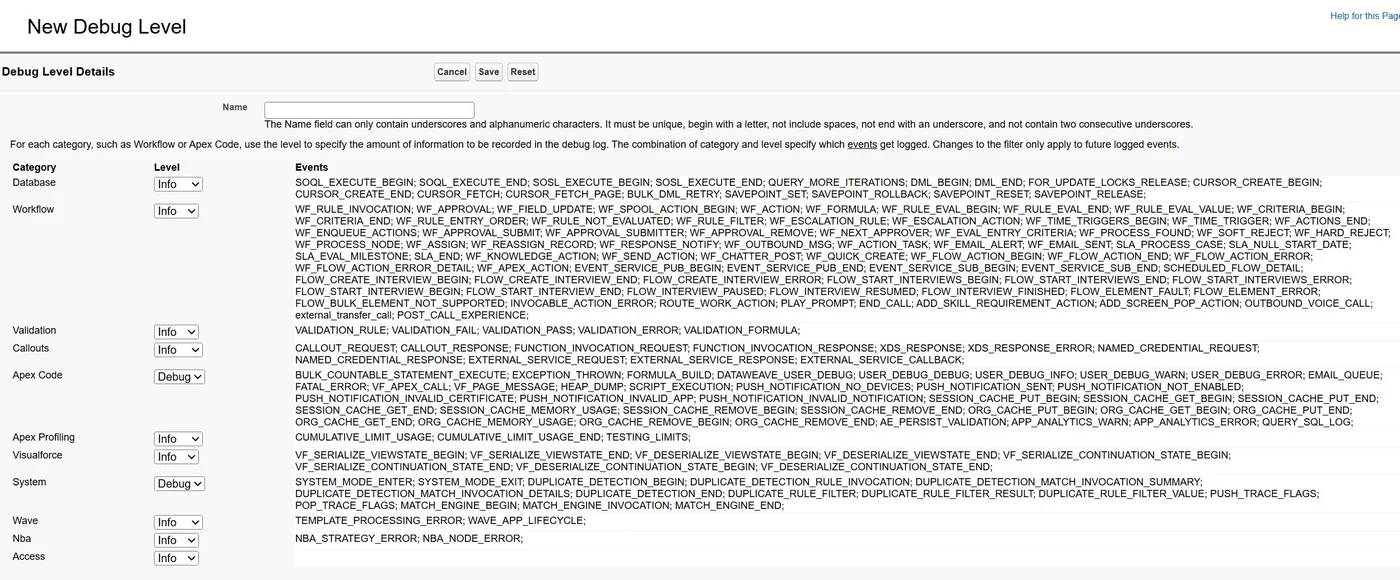
Look at the Events column on the right. It already shows
what we will talk about in the next section.
Level: the volume on each channel
OK, you chose the channels you want to listen to. Now the second question: how much of each channel do you want to hear?
It is the volume on the walkie-talkie. From "completely silent" to "I can hear every breath". The volume levels, from lowest to highest:
NONE > ERROR > WARN > INFO > DEBUG > FINE > FINER > FINESTThe most important detail: each level includes everything the previous level recorded, plus more. It is cumulative, not exclusive.
- NONE: channel silent. Nothing is recorded.
- ERROR: only serious problems. Unhandled exceptions, fatal failures. If nothing broke, the channel stays silent.
- WARN: serious problems + warnings. Something unexpected that did not break the execution, but the system found it strange.
- INFO: warnings + a general view of the execution (when main methods start and end).
- DEBUG: this is where your
System.debug()messages appear. If the channel is below DEBUG, your prints simply do not exist in the log. It is not a bug. The volume is just too low to capture your message. - FINE: everything from DEBUG + details that the system generates, like SOQL queries with the real values, and the number of rows for each DML.
- FINER: even more detail: individual lines of execution, memory allocation. The log starts to grow fast here.
- FINEST: everything. Every line executed, every variable value, full stack trace. Maximum volume, and the log grows very fast.
Here is something almost nobody tells you: not every channel has the full volume control. Each category has a different set of options in the dropdown. It is not a bug. It is Salesforce telling you "this channel does not produce events at that level, so there is no reason to select it".
Here is the real map, from the configuration screen:
| Category | Available levels in the dropdown |
|---|---|
| Database | None, Warn, Info, Fine, Finest |
| Workflow | None, Error, Warn, Info, Fine, Finer |
| Validation | None, Info |
| Callouts | None, Error, Info, Finer, Finest |
| Apex Code | None, Error, Warn, Info, Debug, Fine, Finer, Finest |
| Apex Profiling | None, Info, Fine, Finest |
| Visualforce | None, Info, Fine, Finer |
| System | None, Info, Debug, Fine |
| Wave | None, Error, Info, Fine, Finer, Finest |
| Nba | None, Error, Info, Fine |
| Access | None, Info, Fine, Finer |
Some things to notice:
Apex Code is the only channel with the full 8
levels. That makes sense: it is the channel with the most events, and
the only one where your System.debug() messages live (they
need the DEBUG level to be visible).
Validation is the opposite: only None and Info. You are either listening or you are not. No middle option.
And here is the detail that solves a classic confusion: only
Apex Code and System have the
Debug level in the dropdown. If you want to see your
System.debug() output, the channel that needs to be at
DEBUG is Apex Code, not System.
In practice, the most important jumps are:
- From DEBUG to FINE: this is where queries and DMLs start to appear with real detail.
- From FINER to FINEST: this is where the log grows a lot. Use with care, only when you really need it.
Events: what actually comes out of the speaker
You chose the channel (Category) and the volume (Level). But what actually appears, line by line, inside the log file?
Those are the Events. Each combination of channel + volume activates a specific group of events, and they carry the real information. If the channel is who is talking and the volume is how loud, the event is the exact sentence that comes out of the speaker, with a timestamp.
Some of the most useful events for daily work:
| Category | Events you should know | What they tell you |
|---|---|---|
| Database | SOQL_EXECUTE_BEGIN / SOQL_EXECUTE_END |
When a query started and finished, and how many rows it returned |
| Database | DML_BEGIN / DML_END |
Start and end of an insert/update/delete |
| Apex Code | CODE_UNIT_STARTED /
CODE_UNIT_FINISHED |
When a block of code (trigger, class, flow) started and finished. You can see "who called who" |
| Apex Code | USER_DEBUG |
This is where your System.debug() messages appear |
| Apex Code | EXCEPTION_THROWN |
An exception happened, and exactly where |
| Apex Profiling | LIMIT_USAGE / CUMULATIVE_LIMIT_USAGE |
How much of your governor limits you used at that point |
| Workflow | WF_RULE_EVAL_BEGIN / WF_RULE_EVAL_END |
When a workflow rule or flow was evaluated |
| Validation | VALIDATION_RULE, VALIDATION_PASS,
VALIDATION_FAIL |
Which rule ran, and if it blocked the record |
| Callouts | CALLOUT_REQUEST / CALLOUT_RESPONSE |
What was sent to the external API, and what came back |
You do not need to memorize all of this. If you look at the real screen above, you will see the complete list of events is much longer (Workflow alone has many of them). What matters is the principle: every line in your Debug Log starts with a timestamp and one of these event names. That tells you what happened, when, and in what order.
How to set all this up, in practice
OK, theory is done. Let's open the org together and build this thing for real.
Open Setup, go to Environments > Logs > Debug Logs
(or type "debug" in the Quick Find, it is faster). You will see this
screen:
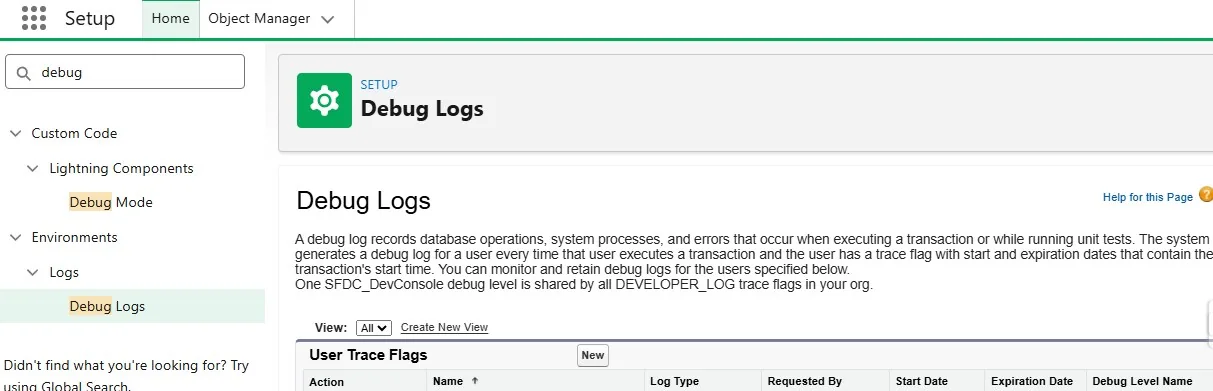
This is the control center. The top part shows Trace Flags (who is being monitored right now), and below you will see logs that were already generated. If the top list is empty, it means nobody is being monitored. That is normal, it is the default.
To start recording, click the New button in the User Trace Flags section. This form will open:
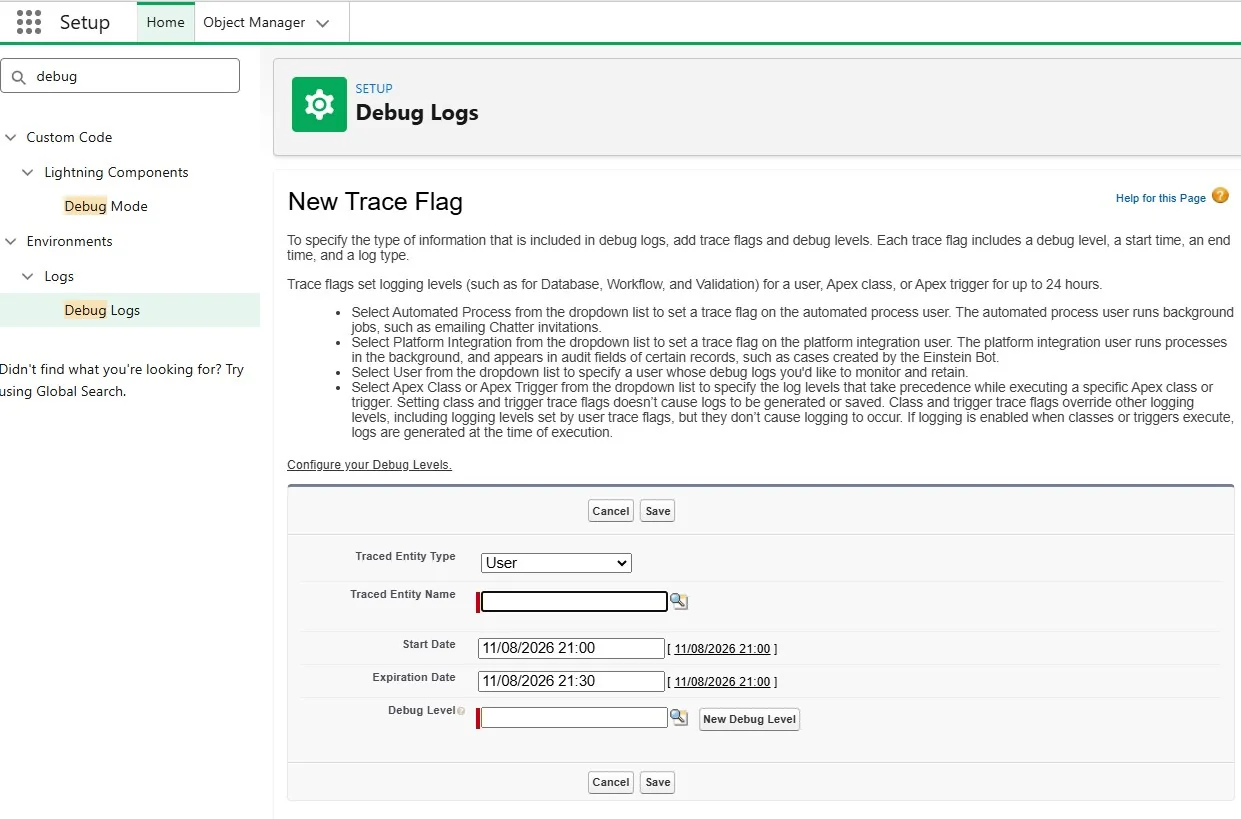
It looks simple, but every field here matters. Let's go through them.
The first is Traced Entity Type, a dropdown with five options:
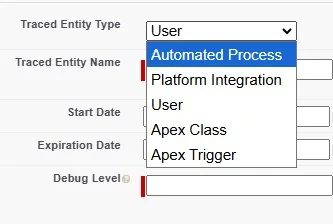
User is what you will use 90% of the time. Choose the user by name in the lookup, and when that person runs any transaction during the time window, a log will be generated.
Automated Process is for when the bug happens at 3 AM with nobody logged in. Batch jobs, platform events, some flows that run in the background: all of this runs under an internal user called Automated Process. If you put the Trace Flag on your own user trying to catch a batch error, you will look at a blank screen the entire night.
Platform Integration is less common. Async callbacks from external systems, Connected Apps, that type of thing.
Now, Apex Class and Apex Trigger: there is a trap here that catches many people. Selecting a class or trigger on a Trace Flag does not generate a log. None. Zero. What it does is work as a resolution override: if there is already an active Trace Flag for a User, and that User's execution enters that class, the detail level goes up temporarily just for that part of the code. When the execution leaves the class, the level goes back to what it was before. But if there is no User being monitored in the first place, the Apex Class flag is completely invisible to the system. It does not turn the camera on. It only changes the zoom on a camera that is already recording.
Next in the form: Traced Entity Name is where you use the lookup to find the user, class, or trigger you chose. Start Date and Expiration Date define the time window. Golden rule: 15 to 30 minutes, not more. A long window on a busy user generates hundreds of big logs and can make Salesforce block new Trace Flags for the entire org.
The last field is Debug Level. If you already have a saved template, find it with the lookup. If this is your first time (or you want to create one specific for this investigation), click New Debug Level and this screen will open:
Looks familiar? Those are exactly the categories and levels we just
talked about. This is where the radio panel becomes real. Give the
template a name (something like Apex_Debug_Standard or
Flow_Investigation, only letters, numbers, and
underscores), adjust each dropdown, save, and done. That Debug Level is
saved and you can reuse it on any future Trace Flag without configuring
everything again.
With the Trace Flag saved and active, go and reproduce the error. Go directly to the record, click the button, save the field. Do not walk around the org, do not open dashboards, do not check Chatter. Every page you load adds noise to the log. The cleaner the interaction, the easier it is to read the result.
Done? Go back to the Debug Logs screen, deactivate or delete the
Trace Flag (so it stops generating unnecessary logs), and in the list
below you will find your new log. You can click View to
see it in the browser, but the best option is: download the
.log file and open it in VS Code. The Salesforce log viewer
cuts long strings to fit the screen (without telling you), and the
browser freezes with large files. In VS Code you have Ctrl+F, syntax
highlighting, and no surprises.
The complete flow:
Setup > Debug Logs > New Trace Flag > choose who + how long + which Debug Level > reproduce the error > deactivate the flag > download the .log
Via API, the Trace Flag is the TraceFlag object and the
configuration template is the DebugLevel object, with
fields ApexCode, ApexProfiling,
Callout, Database, System,
Validation, Visualforce,
Workflow, Wave, Nba.
A config that works well for daily use
For debugging Apex, which is most of what a dev does on this platform, this combination usually works:
| Category | Level |
|---|---|
| Apex Code | FINEST |
| Database | FINEST |
| System | DEBUG |
| Apex Profiling | INFO |
| Everything else | NONE |
Notice the strategy is not to turn everything to maximum. It is to go deep only where it matters, and turn off everything that is not related to what you are investigating. Every channel you turn on generates lines in the log, and a Debug Log can only have 20 MB. If you set everything to FINEST, you will reach that limit fast, and Salesforce will cut the oldest content to keep the end of the transaction. And where is the root cause of a bug usually? Many times, at the beginning. Exactly the part that can be cut.
So even with this "heavy" config on just two channels, keep the Trace Flag window short (15 to 30 minutes) and reproduce the error right away. Do not leave the flag on all day.
The three buttons of the panel
- Category = the radio channel. Which area of the system you want to listen to.
- Level = the volume on that channel. How much detail you want. Remember: the scale is cumulative, and not every channel has all levels available.
- Events = what actually reaches you, with a timestamp and a name, telling you exactly what happened.
A well-configured Debug Log shows you the problem in less than one minute. A bad one makes you spend the entire afternoon scrolling through a huge text file, or looking at a blank screen. The difference is not luck. It is knowing how to turn these three buttons with intention.